

What's inside
- Best Budget M.2 SSDs: Quick Recommendations
- Which Drive Should You Buy?
- PCIe Generation: What Actually Changes?
- Usable Capacity and Price per Terabyte
- Heatsink Clearance and Installation Details
- Decision Matrix
- Durability and Ownership Realities
- Final Verdict
- Compatibility Checklist: Size, Keying and Protocol
- Setup, Cloning and the Mistakes That Waste an Afternoon
- Who Should Skip a Budget M.2 Drive Entirely
- More Picks Worth Considering
As an Amazon Associate I earn from qualifying purchases. This post may contain affiliate links at no extra cost to you.
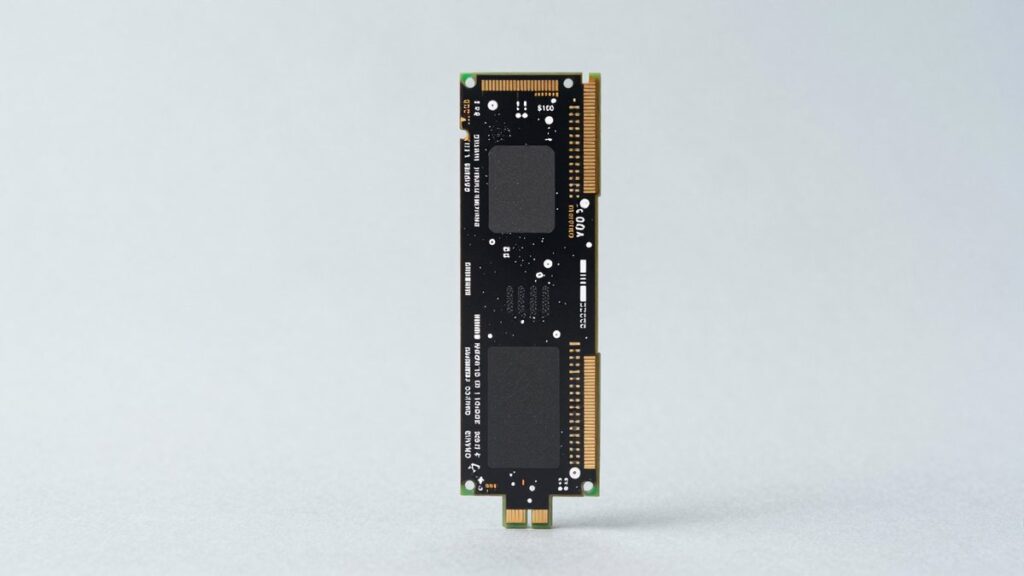
The best budget M.2 SSDs in 2026 are the 1TB WD Black SN770 for dependable everyday value, the Lexar NM790 for high sustained performance, and the Crucial P3 Plus when the lowest price matters more than heavy-write endurance.
As an Amazon Associate we earn from qualifying purchases at no extra cost to you.


Our Top Picks

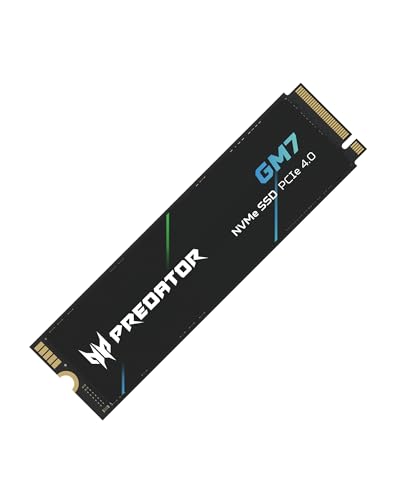


Best Budget M.2 SSDs: Quick Recommendations
| SSD | Interface | Relative 1TB price | Sequential read/write | Endurance | Warranty | Best for |
|---|---|---|---|---|---|---|
| WD Black SN770 1TB | PCIe 4.0 x4 | Budget to mid-range | 5,150 / 4,900 MB/s | 600 TBW | 5 years | Balanced everyday use |
| Lexar NM790 1TB | PCIe 4.0 x4 | Mid-range | 7,400 / 6,500 MB/s | 1,000 TBW | 5 years | Large transfers and frequent writes |
| Samsung 990 EVO Plus 1TB | PCIe 4.0 x4 or PCIe 5.0 x2 | Mid-range to upper mid-range | 7,250 / 6,300 MB/s | 600 TBW | 5 years | Newer systems with flexible compatibility |
| Kingston KC3000 1TB | PCIe 4.0 x4 | Mid-range | 7,000 / 6,000 MB/s | 800 TBW | 5 years | High-write workloads |
| Crucial P3 Plus 1TB | PCIe 4.0 x4 | Budget | 5,000 / 4,200 MB/s | 220 TBW | 5 years | Low-cost storage and game libraries |
Advertised speeds are maximum sequential figures under ideal conditions. They are useful for comparing controllers and interfaces, but they do not describe every transfer. Random access, queue depth, thermal throttling, free space, and the source drive can matter more during normal desktop work.
Which Drive Should You Buy?
Best overall: WD Black SN770
The WD Black SN770 is the safest general recommendation when it is priced comfortably within a budget. Its PCIe 4.0 performance is more than sufficient for operating systems, applications, games, photo libraries, and project files. It uses TLC NAND and relies on host memory rather than a dedicated DRAM cache, which helps keep the price down.
Its 600 TBW rating means the 1TB model is specified for 600 terabytes written during its five-year limited warranty period. That is ample for most home and office computers. It is less attractive for constant scratch-disk use, such as repeatedly rendering and rewriting very large video or virtual-machine files.
Best for sustained transfers: Lexar NM790
The Lexar NM790 is the strongest performance choice when its price stays within budget. With advertised sequential speeds of up to 7,400 MB/s read and 6,500 MB/s write, it can shorten large file copies on a capable PCIe 4.0 system. Its 1,000 TBW rating also gives it a substantial endurance advantage over many budget drives.
Do not expect a 7,400 MB/s copy for an entire multi-hundred-gigabyte transfer. Consumer SSDs first use a fast pseudo-SLC cache. Once that cache fills, write speed can fall substantially, depending on free capacity and temperature. It is still a compelling choice for frequent large writes, but performance after the cache is exhausted is the figure to investigate if sustained work is your priority.
Best for a newer motherboard: Samsung 990 EVO Plus
The Samsung 990 EVO Plus supports PCIe 4.0 x4 and PCIe 5.0 x2 connections, making it flexible across newer platforms. Its rated 7,250 MB/s read and 6,300 MB/s write speeds place it near the top of this price class.
PCIe 5.0 support does not automatically make it faster than a PCIe 4.0 x4 drive. A two-lane PCIe 5.0 connection provides a similar theoretical bandwidth to a four-lane PCIe 4.0 connection. Check the motherboard manual: an M.2 slot may share lanes with a graphics slot or disable another connector.
Best for heavy writing: Kingston KC3000
The Kingston KC3000 combines a dedicated DRAM cache, TLC NAND, and an 800 TBW rating on the 1TB model. Its 7,000 / 6,000 MB/s sequential ratings are still competitive, while the DRAM-equipped design can be advantageous for demanding workloads involving many files or repeated writes.
The trade-off is heat. The KC3000 uses a thin graphene-aluminum heat spreader, but it still benefits from a motherboard M.2 heatsink with a correctly positioned thermal pad. Avoid installing a second heatsink on top of the factory label unless the manufacturer permits it.
Best cheap option: Crucial P3 Plus
The Crucial P3 Plus is a sensible budget drive for a secondary game library, media collection, or general storage when the 1TB model is at the low end of its price range. It reaches up to 5,000 MB/s read and 4,200 MB/s write, which is far ahead of SATA SSD throughput in sequential benchmarks.
Its limitation is QLC NAND and a comparatively low 220 TBW endurance rating. QLC stores more bits per cell, reducing cost and increasing capacity efficiency, but sustained writes can slow sharply after the dynamic cache fills. Choose it for read-heavy use rather than as a working disk for constant exports, scratch files, or large backups.
PCIe Generation: What Actually Changes?
- PCIe 3.0: A four-lane drive typically tops out around 3,000–3,500 MB/s. It remains adequate for normal computing and is often the right choice for an older laptop.
- PCIe 4.0: Four lanes can support roughly 7,000–7,500 MB/s with current consumer drives. This is the best value point for most systems in 2026.
- PCIe 5.0: Four-lane models can exceed 10,000 MB/s, but they generally cost more and produce more heat. On a budget, a PCIe 4.0 drive is usually the more balanced purchase.
A PCIe 4.0 SSD works in a PCIe 3.0 slot, but it runs at PCIe 3.0 speeds. Likewise, installing a PCIe 3.0 SSD in a PCIe 4.0 slot does not upgrade the older drive. Confirm both the physical M.2 2280 size and the slot’s supported protocol before buying.
Usable Capacity and Price per Terabyte
SSD manufacturers label capacity in decimal units: 1TB equals 1,000,000,000,000 bytes. Operating systems commonly display that capacity using binary units, so a new 1TB drive appears as roughly 931 GiB before formatting and reserved space. A 2TB model appears as roughly 1,862 GiB.
| Drive size | Approximate operating-system capacity | Relative purchase price | Relative price per advertised TB |
|---|---|---|---|
| 1TB | About 931 GiB | Budget | Highest |
| 2TB | About 1,862 GiB | Mid-range | Lowest |
| 4TB | About 3,725 GiB | Premium | Middle |
That comparison explains why a 2TB drive can be the better value even when it slightly exceeds a tight budget. If you need more than about 700GB of working space, the extra capacity also preserves free area for background maintenance and reduces the chance of performance loss as the drive fills.
Heatsink Clearance and Installation Details
Most of these drives are single-sided M.2 2280 devices: 22mm wide and 80mm long. The bare drive is usually about 2.2mm thick, while a motherboard heatsink adds several millimeters. Check three clearances before installation:
- Whether the motherboard’s thermal pad contacts the controller and NAND rather than stopping short.
- Whether a graphics card, laptop bottom cover, or CPU cooler blocks the M.2 position.
- Whether the drive’s included label or heat spreader makes the assembly too thick for the slot cover.
Install the SSD at a shallow angle, secure it with the proper standoff, and remove only the protective film from a thermal pad. Do not peel off the SSD’s manufacturer label unless the documentation specifically permits it. On desktop systems, a motherboard heatsink is most useful for PCIe 4.0 drives during long transfers; ordinary browsing and application launches rarely sustain enough load for maximum temperatures.
Decision Matrix
| Your situation | Recommended choice | Reason |
|---|---|---|
| Lowest upfront cost | Crucial P3 Plus | Good sequential speed at a low price, with modest endurance |
| First SSD upgrade | WD Black SN770 | Balanced TLC storage, speed, warranty, and endurance |
| Frequent large file transfers | Lexar NM790 | High rated speed and 1,000 TBW endurance |
| New PCIe 5.0-capable motherboard | Samsung 990 EVO Plus | Supports PCIe 4.0 x4 or PCIe 5.0 x2 |
| High write volume over several years | Kingston KC3000 | DRAM cache, TLC NAND, and 800 TBW rating |
Durability and Ownership Realities
TBW is a warranty endurance limit, not a countdown timer. A 600 TBW rating does not mean the drive fails at 600TB, and a lower-rated drive may run reliably for years in light use. However, write endurance, thermals, and free space all matter more when a drive is used as a scratch disk.
Keep at least 10–15% free when possible, update firmware through the manufacturer’s utility when a relevant stability fix is released, and maintain a separate backup. SSDs are not backups: accidental deletion, controller failure, malware, and electrical faults can affect the original and any always-connected copy. For a workstation that writes large files daily, select a TLC model with a higher TBW rating rather than choosing solely by peak read speed.
Final Verdict
For most buyers searching for the best budget M.2 SSDs, choose the WD Black SN770 1TB when it is priced at the low end of its range. Pick the Lexar NM790 1TB for the best combination of high throughput and endurance, the Kingston KC3000 for write-heavy work, or the Crucial P3 Plus for inexpensive read-heavy storage. Before checkout, verify the slot generation, 2280 clearance, heatsink fit, and the current price per usable terabyte—not just the number printed on the box.
Compatibility Checklist: Size, Keying and Protocol
The five drives above are all M.2 2280 NVMe models, but M.2 is a connector family, not a single standard, and three separate checks decide whether any given drive works in your machine at all. Run through them before ordering, because a drive that fails any one of them will not be detected, no matter how fast it is.
Check the length. The last two digits of the form factor are the length in millimetres. A 2280 drive is 22 x 80 mm, a 2260 is 22 x 60 mm, a 2242 is 22 x 42 mm, and the short 2230 size at 22 x 30 mm is what gaming handhelds and some compact laptops use. Most desktop boards accept several lengths because the standoff can move, but many laptops have one fixed standoff position. A longer drive cannot be shortened, and a shorter drive leaves the screw hole out of reach, so match the number in the listing to the number in your manual.
Check the keying. Look at the notch pattern on the drive’s gold contacts and the matching tab inside the slot. NVMe drives are almost always M-keyed, with a single notch near one end. Older M.2 SATA drives are usually B+M keyed, with notches at both ends. An M-key slot accepts an M-key drive; a slot wired only for SATA storage will not run an NVMe drive even when the notch pattern physically fits, and some laptop slots accept one protocol only.
Check the protocol. This is the mistake behind most returns. A slot can be M.2-shaped and still be SATA-only, particularly on older laptops and budget boards. The manual’s storage section states whether each slot supports NVMe, SATA, or both, and whether populating one slot disables a SATA port or shares bandwidth with the graphics slot. Confirm all three items — length, keying, protocol — against that page rather than against the product photo.
Check the console rules separately. A PlayStation 5 expansion drive must be PCIe 4.0, must clear a published minimum read speed, and must wear a heatsink that keeps the whole assembly inside a strict height limit. Several fine desktop drives fail one of those conditions, so console buyers should verify the drive against the console maker’s requirements instead of assuming any fast 2280 model qualifies.
Setup, Cloning and the Mistakes That Waste an Afternoon
Moving to a new drive goes smoothly when the order of operations is right. Back up anything irreplaceable first, because cloning software copies what is on the source drive, including its problems. If your board has more than one M.2 slot, install the new drive in the empty slot, boot from the old drive, and clone across; the maker’s own migration utility or the cloning software bundled with many drives handles partition resizing automatically. Only after the clone finishes should you swap the drives or change the boot order in the BIOS, and keeping the old drive untouched for a few days gives you a fallback if anything misbehaves.
Three mistakes account for most failed upgrades. The first is forgetting to initialise a brand-new secondary drive: an uninitialised disk is invisible in the file explorer but appears in Disk Management, where it needs a partition style and a simple format before use. The second is seating the drive flat and forcing the screw down, which stresses the board; the stick should sit at a shallow angle in the slot, then rest on the standoff at a slight rise before the screw is snugged. The third is cloning onto a drive that is smaller than the used space on the source, rather than smaller than its total capacity — what matters is the data, so clear out large game installs or media folders first if the numbers are close.
For ongoing care, leave a healthy margin of free space so the controller can spread writes and maintain its cache, install firmware updates only from the drive maker’s own utility, and enable TRIM in the operating system if it is not already on. None of this takes long, and it is the difference between a drive that holds its speed for years and one that feels slow within months.
Who Should Skip a Budget M.2 Drive Entirely
Some buyers are better served stepping outside this category. If your work involves writing hundreds of gigabytes every day — ingesting camera cards, rendering video to the same disk, or running virtual machines that snapshot constantly — the endurance ratings and cache behaviour of budget drives become the limiting factor, and a workstation-class model with a much higher write rating is the sensible purchase. If your motherboard only offers a SATA M.2 slot, none of these NVMe drives will work at all, and a good 2.5-inch SATA drive is the correct upgrade instead. And if your current drive is already a healthy PCIe 4.0 model, a sideways move inside the same generation buys almost nothing you can feel; save the money toward a capacity jump, which is the upgrade that changes daily use.
More Picks Worth Considering
WD Blue SN580 1TB

The SN580 is the calm, low-stress option in this class. It runs on PCIe 4.0 x4 with sequential reads and writes up to 4,150 MB/s, uses TLC NAND with a host memory buffer instead of a DRAM cache, and carries a 600 TBW endurance rating with a five-year warranty on the 1TB model. Its single-sided 2280 layout and modest power draw suit laptop upgrades, small-form-factor builds and office machines that run all day, where cool and quiet operation matters more than benchmark peaks. Skip it if you chase the fastest large transfers, since the drives in the main guide are far quicker, and skip it for console expansion, because its read ceiling sits below what the console maker recommends.
Kingston NV3 1TB

The NV3 aims at buyers who want strong headline speed from a simple, single-sided stick. Kingston rates the 1TB model at up to 6,000 MB/s reading and 4,000 MB/s writing over PCIe 4.0 x4, which places it ahead of the entry tier for game installs, library moves and everyday loading while staying in the budget band. The trade-offs are endurance and coverage: the 1TB rating is 320 TBW and the warranty runs three years rather than the five offered by most rivals here. Choose it as a game library or secondary drive in a desktop that sees ordinary use. Skip it as a hard-worked boot and scratch drive, where the main guide’s higher-endurance picks are safer.
SK hynix Gold P31 1TB

The Gold P31 is the pick for machines that cannot use PCIe 4.0 speed anyway. It is a PCIe 3.0 x4 drive rated at 3,500 MB/s reading and 3,200 MB/s writing, built on TLC NAND, with a 750 TBW endurance rating and a five-year warranty at 1TB. Its lasting reputation is power efficiency: it sips power compared with most rivals, which translates into cooler running and better battery life in laptops, and its single-sided board fits slim ultrabooks easily. Choose it for an older laptop or desktop refresh where efficiency and endurance beat raw pace. Skip it in a new PCIe 4.0 desktop, where the main guide’s drives are much faster, and skip it for console expansion, which the maker states it does not support.
Related guides
More from Amazon
Programs that pair well with the guide above. Offers and eligibility are set by Amazon and may change.
A free business account with business pricing and bulk-buying tools for work, shop or home office.
Create a business accountFree shipping on eligible items, Prime Video and more. Eligible new members can start with a free trial.
Start a Prime free trialAudiobooks and podcasts to listen to on the go. Eligible new members can start with a free trial.
Try Audible freeAd-free music streaming. Eligible new subscribers can start with a free trial.
Try Music Unlimited freeAs an Amazon Associate we earn from qualifying purchases.






Write Your Review
No reviews yet. Be the first to share your experience!